
Paying through digital ordering
When guests order and pay themselves by QR code, payments are powered by Adyen (status page). To receive Adyen payments you must complete a Know Your Customer (KYC) check.
Guests can pay with:
- Debit and credit cards — Visa and Mastercard
- Apple Pay — status page
- MobilePay (Denmark) — status page
- Vipps (Norway) — status page
- Swish (Sweden) — status page
Hotels can also enable Bill on room, which charges an order to a room number and is available on both digital ordering and in ePOS. Favrit does not take this payment; you settle it yourself when the order comes in. It is registered as an unintegrated payment method in your reports.
Paying in ePOS
When staff take payment in ePOS, card payments go through a terminal. There are two terminal types:
- Adyen terminals — run on Adyen. Adyen status page
- F1 terminals — use Softpay to read cards, with Elavon as the acquirer for Visa and Mastercard. They also accept BankAxept and are contactless (NFC) only. Softpay status page
Both Adyen and F1 terminals accept the major card types, including Visa, Mastercard, and American Express. American Express is enabled by default on Adyen terminals. Because Amex carries higher transaction fees, you can ask Favrit Support to turn it off for your terminals if you'd prefer not to accept it.
You can also enable these payment options for ePOS:
- Cash — see Connect a cash drawer to ePOS.
- Invoice — let a guest pay later against a reference. See Invoice payments and invoice integration.
- Favrit gift cards — sell and redeem gift cards as a payment method. See Gift Cards.
- Representation, third-party deliveries (such as Wolt, Foodora, and Uber Eats), external gift cards, and other custom payment methods.
Where to enable payment options in ePOS
Payment options are controlled at two levels. Set the default for the location in Admin, then fine-tune which options appear on each individual device in ePOS.
Set the default in Admin
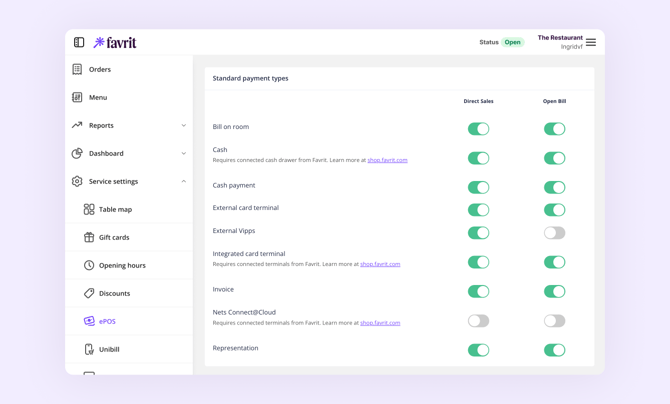
Go to Admin → Service Settings → ePOS and enable the payment methods you want available for the location.
Override on each device in ePOS
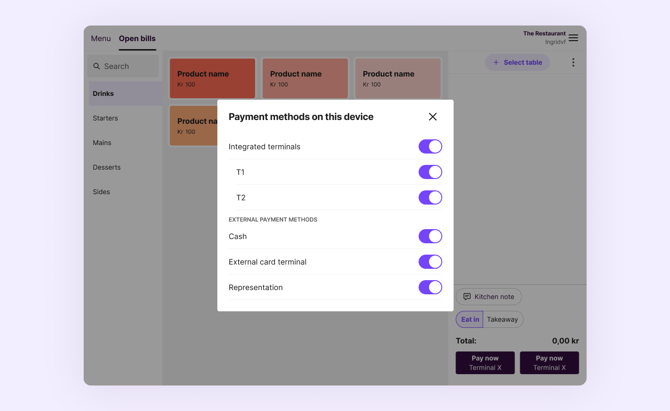
- Open ePOS on the device.
- Tap the hamburger menu (three lines) in the top-right corner.
- Tap Payment methods.
- Switch the payment methods and terminals for that device on or off.
Use this same screen to hide terminals that belong to another device. If one iPad shows every terminal you own, switch off the ones that aren't physically next to it so staff only see the correct terminal — otherwise a payment can be sent to a terminal in another room.
Discounts
Discounts are applied to an order before payment rather than being a payment method. See Discounts for how to set those up.
Splitting payment across different payment methods
In ePOS, you can split the bill and take payment for part of an order, or across more than one method. This is available in ePOS only, not on digital ordering yet. See How do I use Open bill? for more details.
Troubleshooting: a payment method isn't showing on a device
If a method is enabled in Admin but a guest or staff member can't see it on a specific device, work through these steps:
- Check the device's own Payment methods list. Because the selection is per device (see above), open the ePOS hamburger menu → Payment methods on that exact device and confirm the method is switched on there.
- Toggle it off and on. If a Gift card or other method is switched on but still not appearing, switch it off, then on again in the Payment methods menu and reopen ePOS.
- For F1 terminals, reconnect Softpay. In ePOS, open the hamburger menu → Payment methods → Disconnect from Softpay, close and reopen the ePOS app, then choose Connect to Softpay and run a test payment.
- Confirm the location is connected. If no terminals appear at all, the location may not be linked correctly — contact Favrit Support.
If a guest can't pay through their preferred method at your location, contact Favrit Support.