
Where to find delivery points
Go to Admin > Service Settings > Delivery points.
Some delivery points are available in both ePOS and digital ordering, while others are for digital ordering only. See the overview below for which is which.
For each delivery point, you can:
- Turn it on or off with the toggle.
- Click Edit to add a fee, turn on pre-ordering, or add info to the guest.
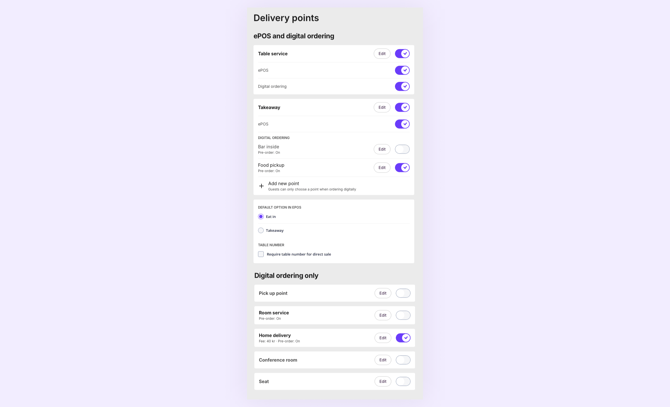
ePOS and digital ordering
Table service
Guests get their order served at the table. In digital ordering, guests enter their table number.
You can turn table service on or off separately for ePOS and Digital ordering.
Takeaway
Guests pick up their order to go.
- ePOS: turn takeaway on or off for sales in ePOS.
- Digital ordering: add one or more pickup points for takeaway orders, for example "Bar inside" or "Food pickup". Each point can have its own settings and can be turned on or off separately.
To add a new point, click Add new point. Guests can only choose a specific point when ordering digitally.
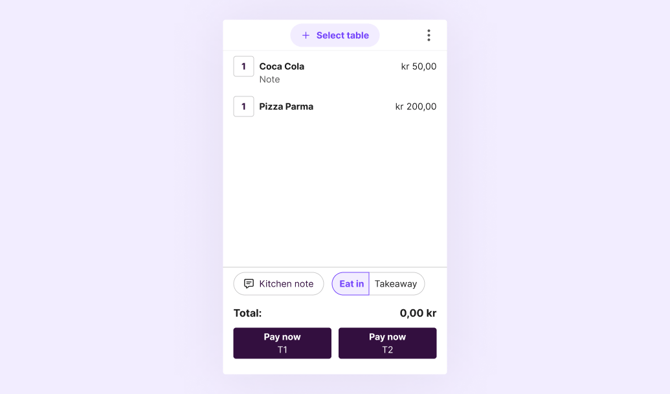
Under Default option in ePOS, choose whether new orders in ePOS start as Eat in or Takeaway. Staff can still change this on each order.
Require table number for direct sale
Check Require table number for direct sale if staff must enter a table number before completing a direct sale in ePOS.
Overview of delivery points
|
Delivery point |
Available in |
Multiple points |
Pre-order possible |
Info to guest |
VAT category |
|---|---|---|---|---|---|
|
Table service |
ePOS and digital ordering |
No |
Yes |
Yes, in digital ordering |
Eat in |
|
Takeaway |
ePOS and digital ordering |
Yes, in digital ordering, e.g. "Food pickup" |
Yes |
Yes, in digital ordering, per point |
Takeaway |
|
Pick up point Guests pick up their order at a set location in your venue. |
Digital ordering |
Yes, e.g. "At the bar" |
Yes |
Yes, per point |
Eat in |
|
Room service For hotels. Guests enter their room number, and the order is delivered to the room. |
Digital ordering |
No |
Yes |
Yes |
Eat in |
|
Home delivery For venues that deliver. Guests enter their address when ordering. |
Digital ordering |
No |
Yes |
Yes |
Takeaway |
|
Conference room For hotels and venues with conference facilities. |
Digital ordering |
Yes, e.g. "Conference room Big Hall" |
Yes |
Yes, per point |
Eat in |
|
Seat For cinemas, theaters and arenas. Guests enter their seat number. |
Digital ordering |
No |
No |
No |
Eat in |
Delivery points and VAT
Read more in How do tax groups (VAT) work in Favrit?, which lists the default VAT rates per delivery point.
Fees (digital ordering only)
You can add a fee to a delivery point, for example a delivery or room service fee.
To add or change a fee, click Edit on the delivery point. For delivery points with multiple points, such as Pick up point and Conference room, the fee is set per point.
Pre-ordering (digital ordering only)
Pre-ordering lets guests place an order now and get it delivered at a later time. You turn it on per delivery point: click Edit on the point and turn on Enable pre-ordering.
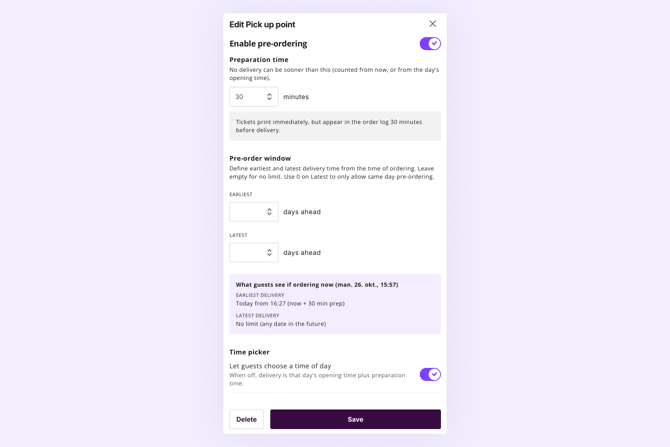
Preparation time
The preparation time is the minimum number of minutes before an order can be delivered. Guests can't choose a delivery time sooner than this. It is counted from the time of ordering, or from the day's opening time.
Tickets print as soon as the order is placed, but the order only appears in the order log the set number of minutes before delivery.
Example: A guest orders at 14:00 for delivery at 15:30, and the preparation time is 30 minutes.
Tickets: print at 14:00, right when the order is placed.
Order log: the order appears at 15:00, 30 minutes before delivery.
Pre-order window
The pre-order window decides how far ahead guests can order, counted in days from the time of ordering.
- Earliest: the minimum number of days ahead a delivery can be.
- Latest: the maximum number of days ahead a delivery can be. Enter 0 to only allow pre-orders for the same day.
Leave a field empty for no limit. Below the fields, you can see what guests will see if they order right now, including the earliest and latest delivery time.
Time picker
Turn on Let guests choose a time of day to let guests pick a delivery time when they order.
When it is off, guests only choose a day, and the delivery time is that day's opening time plus the preparation time.