
Location opening hours:
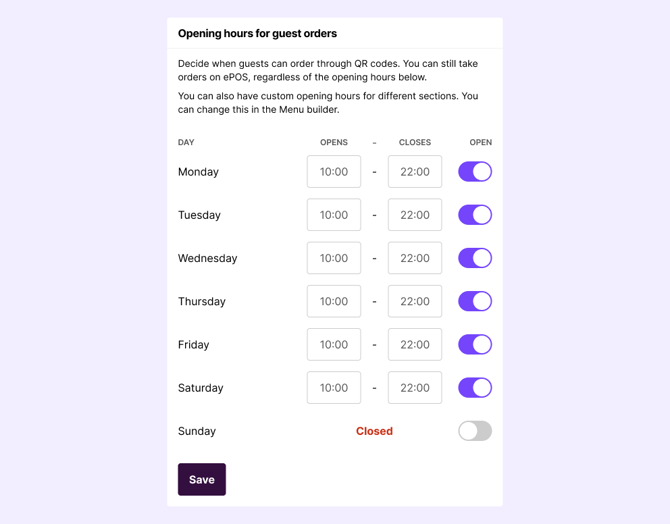
Define when your venue is open for digital ordering on QR or online. When your location is closed, no orders can be placed by guests regardless of what your menu sections say.
Section opening hours (also called custom opening hours):
Use this if you have sections that should only appear at certain times, for example a lunch menu, an alcohol section with licensing restrictions, or weekend pricing. This applies for both ePOS and digital ordering (within location opening hours).
Opening hours in micronetworks:
Used to define custom opening hours for a section shared to another location.
Location opening hours
Location opening hours only apply to guest orders placed via QR or online, and do not affect ePOS.
- Go to Admin > Service Settings > Opening hours.
- Set your opening and closing time for each day of the week.
- Click Save.
If your location does not have opening hours configured, guests are unable to order on QR or online.
Closing for a holiday or special day
There is currently no dedicated holiday calendar. To close on a specific date you have to manually close it for that day of the week, and open it again.
Common issues
| Guests see "location is closed" but you are open: | Check that today is not accidentally set to Closed, and that no one has manually closed the location. |
| "No available preorder time" showing for guests: | Check that the main location's opening hours are configured and that today is not set to Closed. |
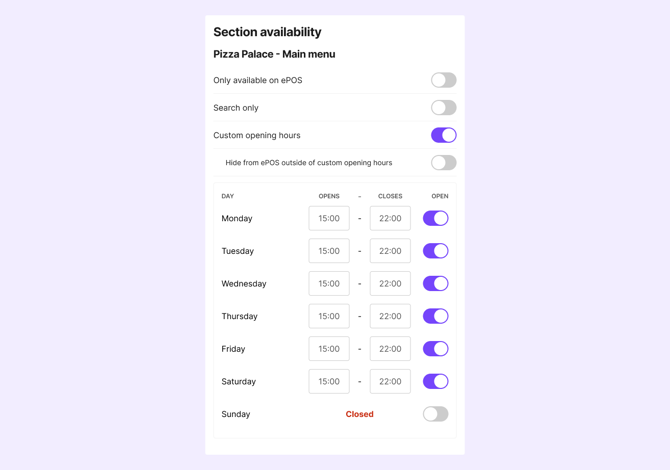
Custom opening hours let you set specific availability windows for individual menu sections for ePOS and digital orders.
When a section is outside its custom opening hours:
- The section displays a "Closed" tag.
- If pre-order is enabled for the location, the section will show "Only pre-order" for digital orders.
- You can also enable "Hide from menu outside of custom opening hours" on the section.
To set custom opening hours on a section:
- Open your menu in Menu Builder and click on the section.
- Go to Settings for that section.
- Enable Custom opening hours.
- Set the hours for each day the section should be available.
- Click Save.
The same section in multiple menus on your location:
If your location has multiple menus, for example a separate takeaway menu, custom opening hours must be configured independently for each menu. The settings do not carry over automatically.
- In Menu Builder, go to the Menus tab.
- Switch to the relevant menu using the "You're now editing" dropdown, located just below the navigation bar.
- Open the section and configure the opening hours settings as needed.
Not sure which is the active menu for digital orders and ePOS? Go to Menu Builder > Settings > Scroll down to "Active menus".
Common issues
| A section is not showing up for guests: | Check whether custom opening hours are correct and enabled on the section in the active menu. |
| A section appears available outside its intended hours: | Make sure the correct days and times are configured, and that the hours are not accidentally set to a window that covers more than intended. |
| You cannot save changes to section opening hours: | Check your user role. Some changes require Full access. |
Some issues can also be caused by if your location is part of a micronetwork.
Opening hours in micronetworks
Micronetworks lets locations share sections with each other. This way, a bar can sell pizza from the neighbouring restaurant in the same menu.
Producer location: The location making the food, for example the pizza restaurant.
Consumer / Micronetwork location: The location displaying the section in their menu, for example the bar, or a foodcourt.
Location opening hours in micronetworks
For digital ordering (QR or online), a shared section is only available when both the producer location and the consumer location are open. Go to Admin > Service settings > Opening hours to see if it is open in both locations.
Custom section opening hours per location
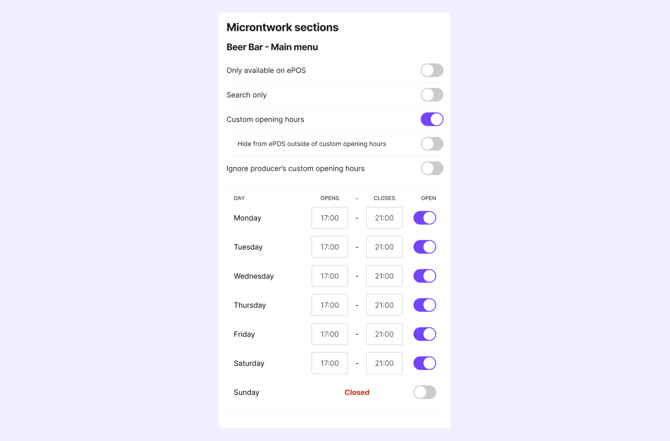
The producer location can define custom opening hours for a shared section per consumer location. This gives you fine-grained control over when a section is available at each venue it is shared to.
You can also toggle on "Ignore producer's custom opening hours", to only use the hours set for the consumer location.
How custom opening hours work in a micronetwork
The table below shows how the combination of settings on the producer and consumer locations determines when a section is available.
| Producer custom hours | Consumer custom hours | Ignore producer's custom hours | Result for consumer (micronetwork location) |
| Off | On | Does not apply | Section is available within the hours set on the consumer location. |
| On | Off | Off | Section is available within the hours set on the producer location. |
| On | Off | On | Producer's custom hours are ignored. Section falls back to location opening hours, making it available the entire time both locations are open for digital ordering, and always available in ePOS. |
| On | On | Off | Section is only available during the overlapping hours. If the consumer has set hours outside the producer's window, only the overlap counts. |
| On | On | On | The producer's custom hours are ignored. Only the consumer location's hours apply. |
Common issues
| A shared section closes earlier than expected | Check whether the producer location has custom opening hours set, and whether the consumer's hours fall within that window. Also check that the producer location's own location opening hours have not ended. |
| A section is unavailable on a specific consumer location but available on others | The custom opening hours may be configured differently per consumer location. Check the section settings for each location individually. Go to the producer location > Menu > Section > Settings. |