
What is CloudPRNT?
CloudPRNT is one of two ways to connect a printer to Favrit. The printer connects to the internet on its own and talks to Favrit's servers directly, so it prints without an iPad attached.
When to use CloudPRNT
Use CloudPRNT when you want the printer to run without an iPad next to it, for example in the kitchen.
The other option is connecting the printer to an iPad with a USB cable. This works best when you want a printer at an iPad station, or if you also need a cash drawer. See Set up with USB to iPad.
Before you start
The printer must be connected to power, have paper, and be on the internet. How it gets online depends on the model:
 |
 |
|---|---|
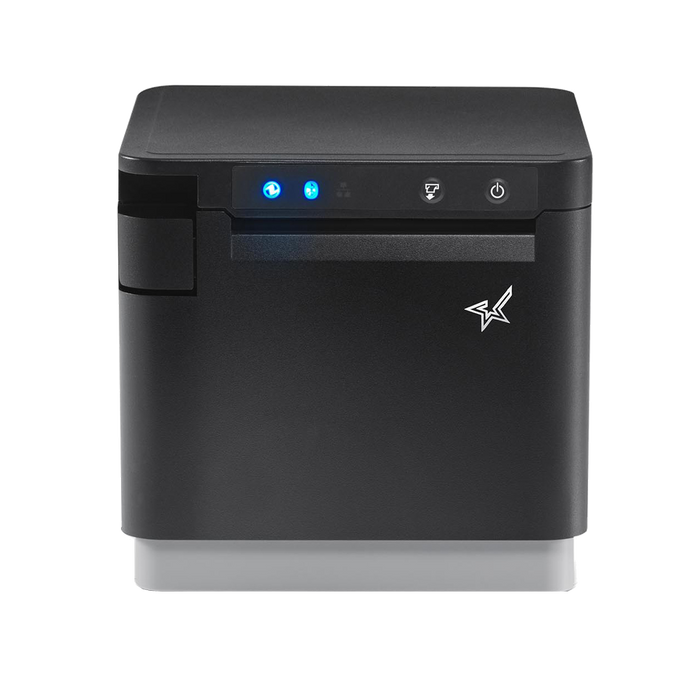
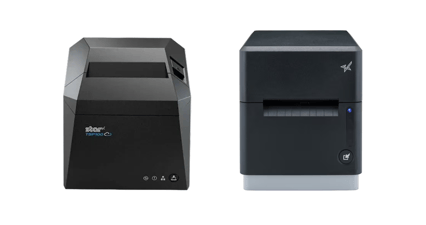
| mC-Print3 connects by cable. Run an Ethernet cable from the printer to your network. | TSP100 and mC-Label can connect over WiFi — you need to put them on WiFi first (see the next section) before the app can set them up. They also work with an Ethernet cable if you'd rather use one. |
You also need the Favrit Admin app, and the iPad must be allowed to find devices on the local network (iOS asks for this the first time).
Connect a TSP100 or mC-Label to WiFi
Do this first if you're setting up a TSP100 or mC-Label over WiFi. If you're using an Ethernet cable instead — or setting up an mC-Print3 — skip this and go straight to the next section.
- Connect the printer to power.
- When it turns on, it automatically prints two slips with QR codes — one for WLAN setup and one for Bluetooth setup. Use the WLAN setup one.
- Scan the WLAN setup QR code. A prompt appears asking you to join the printer's WiFi network — tap Connect.
- A configuration page opens in the browser. The first time you set up a printer, log in with the username
rootand the passwordpublic, then tap Login. You'll be asked to change the password — set it tofavrit. - The next page shows the network the printer will connect to. Enter the WiFi password if it isn't already filled in.
- Tap Submit.
- You should see "Wireless LAN settings are accepted".
The printer is now on WiFi. Continue with the app setup below.
Set up CloudPRNT automatically (recommended)
This will configure the printer through the Favrit Admin app.
- In the Favrit Admin app, go to the Hardware tab and tap Connect new hardware.
- Choose Configure LAN printer to use CloudPRNT.
- The app searches the network and lists the printers it finds. Select your printer. If it doesn't appear, enter its IP address manually — hold the Feed button while turning the printer on to print a self-test slip; the IP address is at the bottom of the last slip.
- Choose the placement where the printer should print (placements are created by Favrit — contact support if there's none to choose).
- Tap Configure. The app prepares and registers the printer; this can take up to about 90 seconds.
- When it's done, tap Test print to check, then Done.
The first slip can take up to a minute to arrive. Orders print without this delay.
Set up CloudPRNT manually (alternative)
You can also configure CloudPRNT manually through the printer's own web page instead of using the Favrit app. This takes about 5–10 minutes.
- Connect the printer to the network with an Ethernet cable, and to power.
- Connect a laptop or mobile device to the same network.
- Hold the Feed button while turning the printer on. After a few seconds it prints three slips with diagnostics. (Make sure there's paper if nothing prints.)
- Find the printer's local IP address at the bottom of the last slip.
- On your laptop or mobile device, open a browser and enter the IP address (for example
http://192.168.65.251— usehttp, nothttps). You should see a page titled "mC-Print3 Network Utility" (or the equivalent for your model). - Tap login and enter the default username and password shown on the left of the page (
rootandpublicfor mC-Print3). - Change the password and save it for later.
- Go to Home and note the MAC address (for example
00:11:62:34:16:1B). - Go to CloudPRNT → choose ENABLE → enter
https://favrit.com/ws/print-service/v1/cloudprntas the server URL → tap submit. - Go to Save and choose Save → Restart device, then tap Execute.
The printer restarts and starts contacting Favrit. On first contact it prints a slip with instructions to finish registration. When it does, complete the registration in Admin:
- Open Admin.
- Go to Equipment → Printers.
- Tap Import printer and enter the MAC address from step 8.
- The printer appears in the list. Use the Placement ID dropdown to choose where it should print. (Changing this later has no negative effect.)
Nothing prints on the last step during setup?
It likely means the printer isn't on the internet, or something went wrong in the setup.
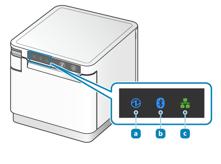
Look for the green LED on the printer flashing green. If it isn't green, the printer has no internet and won't work until it does.
If it is green, double-check the server URL you entered in step 9, and factory-reset the printer if it was previously used with another CloudPRNT server.
Troubleshooting
These are errors you might see while setting up CloudPRNT. For a printer that was working and has stopped printing, keeps dropping out, or is offline, see Why isn't my printer printing out orders or receipts?.
No printers found. Check that the printer is on and has paper, the cable (or WiFi) is connected and its link light is on, the iPad is on the same network as the printer, and the printer has been on for at least a minute. Then search again, or enter the IP address manually.
"Registered to another location." The printer is already set up for a different location. Move it in Admin > Equipment > Printers first, then run the app setup again.
"Online but never reaches Favrit." The printer is on the network but can't reach the internet — no uplink, a firewall blocking outgoing HTTPS, or a guest/captive network. Give the printer proper internet access, then try again.
"No access." Your account doesn't have permission to set up CloudPRNT printers for this location. Ask an administrator, or have someone with access run the setup.
"Firmware upgrade required." Older mC-Print2 printers need firmware 3.0 or later before CloudPRNT works. Update the firmware using the Star Micronics app, then run the app setup again.
Resetting a printer with a forgotten password, checking a printer's status after setup, and moving a printer between locations are done in Admin, not the app.