
Turn on invoice as a payment method
In Admin, go to Service Settings > ePOS and enable Invoice as a payment method. Once it's on, you can take invoice in ePOS for both direct sales and open bills.
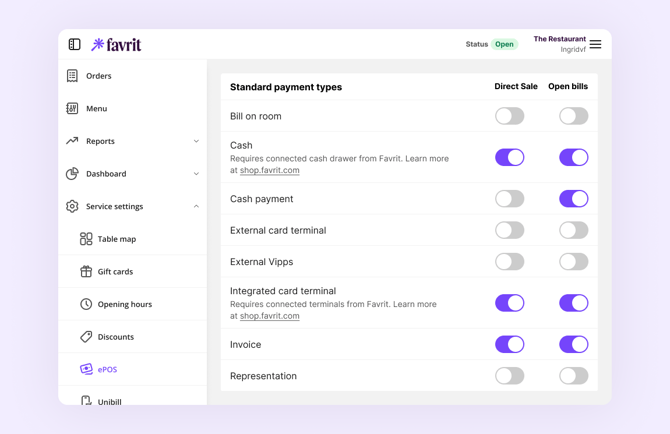
Still don't see it in ePOS?
Make sure Invoice is also enabled on the device: in ePOS, open the hamburger menu, select Payment Methods, and toggle Invoice on.
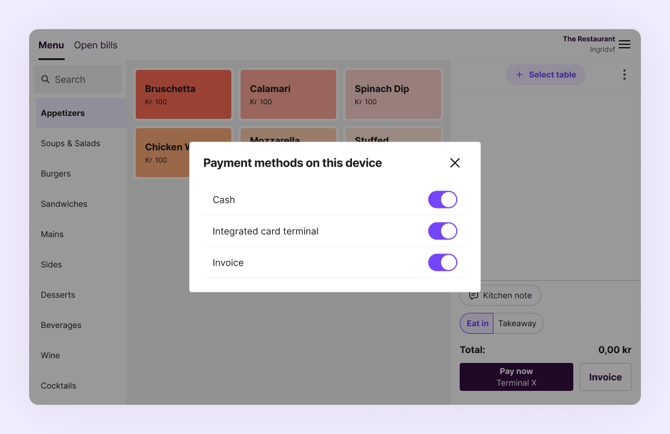
Take a payment by invoice
When taking an order, choose Invoice as the payment method. This works for both direct sales and open bills.
See your invoice sales
In Admin, go to Reports > Invoice report to download a report of sales paid by invoice, with details about each order.
Invoice integration
With invoice integration, the sale is sent to your accounting system as an order. It is not sent directly to the customer — this lets you add to or make changes to the order before you send it to the customer.
Want invoice integration? Contact Favrit Support to get it set up. It's available for most supported accounting systems, and can usually be enabled quickly for others. Invoice integration is an add-on at an extra cost.
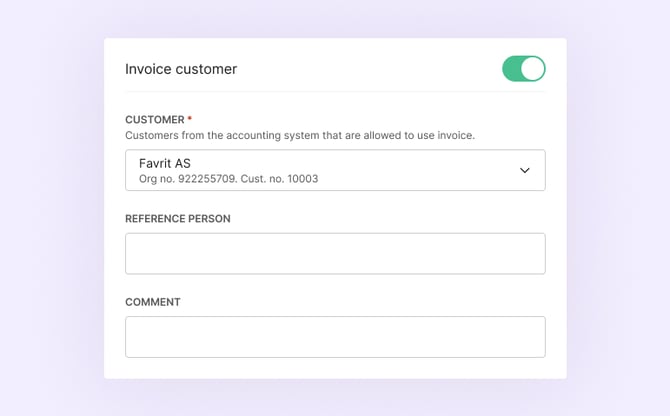
Choosing a customer (customer registry)
When selecting Invoice as the payment method, you select from a list of customers from your accounting system. A few things to know:
- The customer must already exist in your accounting system before you can select them in Favrit.
- Customers are synced from the accounting system several times a day (around six times). For Tripletex, changes usually appear within seconds or minutes. If a customer still doesn't appear, ask Favrit Support to run a sync.
- Not all accounting integrations support pulling customers.
Options Favrit can configure
Several options control how invoice integration behaves. Contact Favrit Support to enable invoice integration or adjust any of these:
| Option | What it does |
|---|---|
| Pull customers from the accounting system | Lets you choose a customer when paying by invoice. If toggled off, the customer name is entered manually instead. Not all systems support customer registry. |
| Send invoice as an order to the accounting system | Sends each invoice to the accounting system. If toggled off, you rely on the invoice report instead. |
| Display products as separate order lines | Shows each product as its own line in the accounting system. |
| Invoice sales in the daily export | Whether invoice sales are included in the daily export: no sale, only from micronetworks, or all sales. By default your location's own invoice sales are excluded, so they aren't counted twice. |
| Invoice date | Which date the invoice uses: payment date, order created date, or first order line date. |
| Autopay invoices on settlement close | Automatically marks open invoice bills as paid before the settlement period closes, to avoid a credit balance. |
Refunding an invoice
You refund an invoice order the same way as any other order, from the order log or order history. A refund in Favrit does not change what has already been sent to your accounting system.
Common issues
Customers from your accounting system don't appear when paying by invoice. The customer registry may not be enabled, or your accounting system may not support it; the customer must exist in your accounting system; or the sync hasn't run yet — ask Favrit Support to run a sync.
An invoice didn't reach your accounting system. This is usually a sync issue — see how to fix a sync error.
To turn invoice integration off, contact Favrit Support.