Jump to:
Create subsections in the menu
Getting the most out of 'All products' and subsections
‘All products’ displayed order of products
Create subsection in the menu
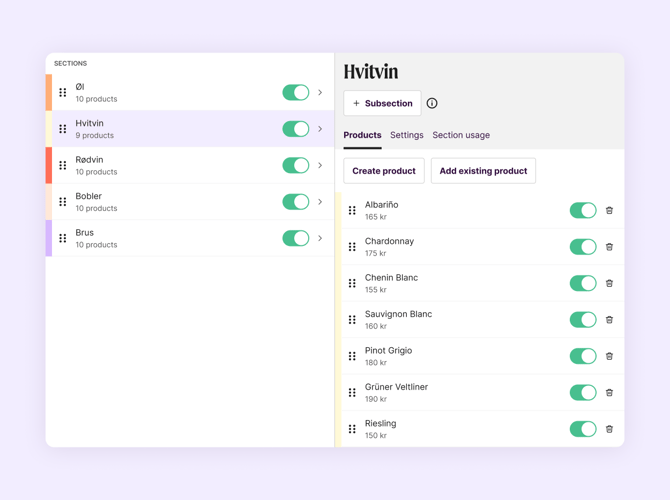
1. Click on a section, and click the button that says "+ Subsection".
2. Give it a name, and select which products from the section you want to add to the subsection.
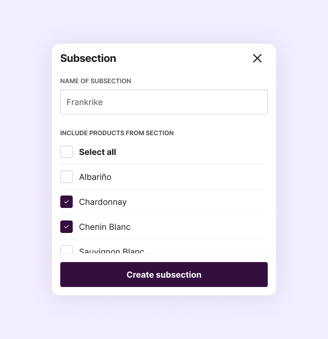
3. That is it! You have now created a subsection.
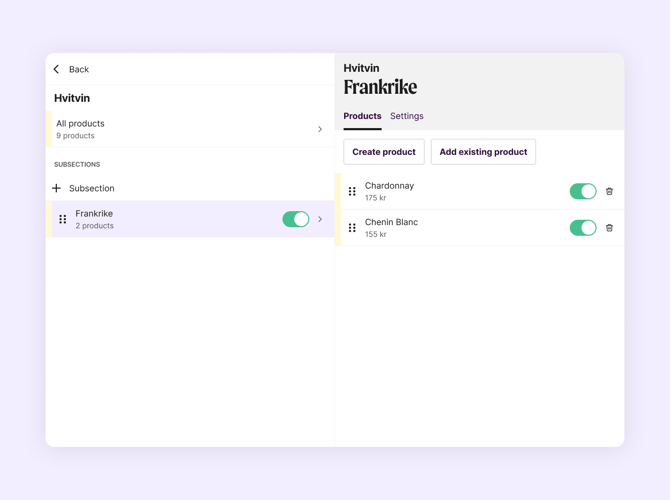
Getting the most out of 'All products' and subsections
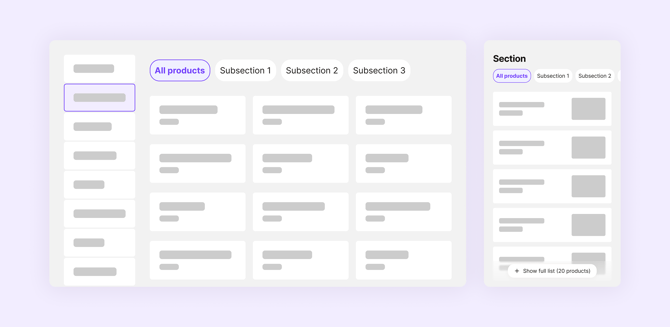
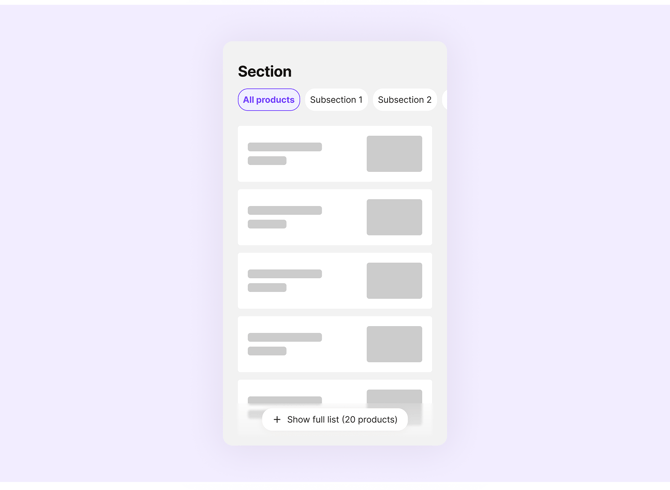
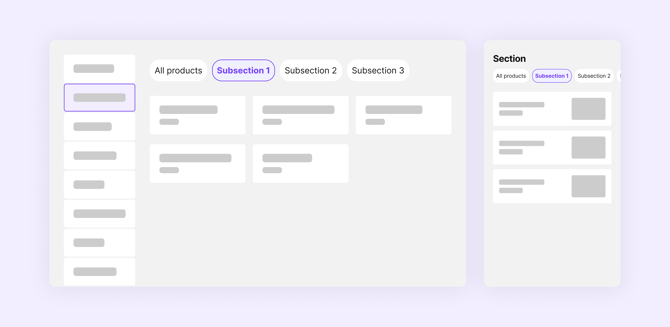
'All products' gives an overview of everything in the section, while a subsection filters it to only show products within that specific category.
This means you don't need to place every product inside a subsection, giving you flexibility in how you use them.
For example, you could create a subsection for "Vegetarian" or "Special offer" to highlight only a few products in the section.
‘All products’ displayed order of products
It will display products from the first section, followed by the second section and so on. Unfortunately it is not yet possible to rearrange the products in 'All products'.