
Setting up your iPad
When preparing your equipment, the first step is to get the iPad ready to use.
If you already have an iPad, you can skip the Apple ID step and go straight to the Favrit Admin app step.
1. Apple ID
If you have a brand-new iPad, the first step is to create an Apple ID.
- Turn on the iPad and follow the steps.
- After a while, you'll be asked to create a free Apple ID.
- Follow the on-screen steps to set up the iPad and create your Apple ID.
- Open Settings > Display and Brightness and set Auto-Lock to "Never".
Tip: Keep a note of the Apple ID email and password. You'll need them again if the iPad is reset or replaced, or if it gets logged out — so storing them safely now saves you trouble later.
2. Favrit Admin app
- Once the iPad is set up and your Apple ID is created, open the App Store.
- Search for the Favrit Admin app and download it.
- When the app has downloaded, open it and sign in with your Favrit account.
Set up your printer
If you need printed receipts or tickets in the kitchen/bar, you can connect a printer with CloudPRNT, or by USB cable to an iPad.
First, make sure the printer is connected to a power outlet, and that there is paper in the printer (test with the feed button on the printer).
USB cable to an iPad
Connects the printer directly to the iPad and uses the iPad's internet connection. If the Wi-Fi drops, the iPad switches to 4G/5G, so the printer keeps working. The printer also supplies power to the iPad.
Choose this method if you want a printer at an iPad station — and note you must use this method if you also want to connect a cash drawer to the printer.
For the full setup, see Set up printer with USB to iPad.
CloudPRNT / LAN
Connects the printer directly to your local network with an Ethernet cable, so it prints on its own without an iPad attached.
This is a good choice for places like the kitchen, where you don't need an iPad next to the printer. It requires access to a LAN, and an Ethernet cable runs from the printer to the network outlet.
For the full setup, see Set up printer with CloudPRNT.
Set up cash drawer
A cash drawer connects through the printer and only works over cable, so it requires the USB-to-iPad setup.
For the full setup, see Set up cash drawer.
What to print where
If the iPad is connected to two printers, or a printer + mPOP (with built-in printer), you can choose what to print where.
- Receipts: Can only be printed on one of the printers.
- Order tickets: Can be printed on one or both of the printers.
- Reports: Can be printed on one or both of the printers.
- Guest invitation: This is a printed QR code for inviting guests to join a bill. Can be printed on one or both of the printers.
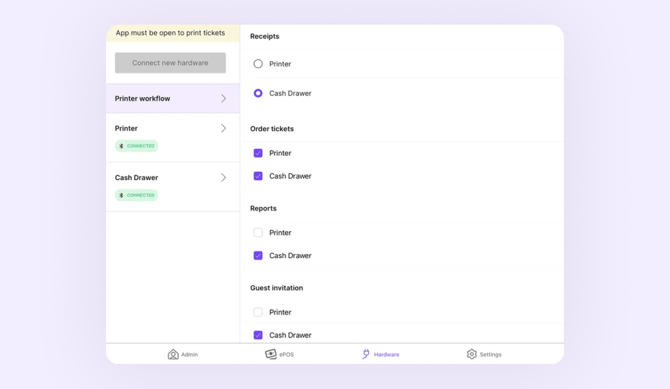
Note: Make sure at least one printer is enabled for each option. If an option has no printer selected, it will print on the selected receipt printer.