
The feature can be used in two ways:
- Serving order: Divide the order into starter, main course and dessert, so the kitchen knows which course to prepare and when.
- Kitchen grouping: Group dishes by kitchen station, for example "Hot kitchen" and "Cold kitchen", so the right kitchen always receives the right ticket.
See video guide at the bottom of the article
Set up courses
Go to Menu Builder → Settings, and scroll down to "Courses".
Define the courses you want, for example Starter, Main Course and Dessert. This works independently of any sections you already have.
You can rename, reorder and see how many products are linked to each course.
Once you link a product to a course, it will automatically appear under the correct course in the cart, with the option to move products to a different course.
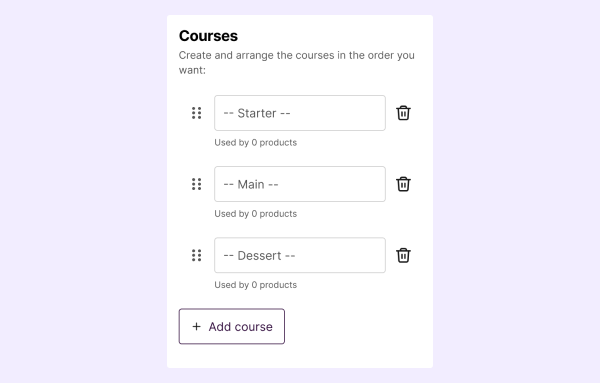
💡 Tip: Use dashes around the name for a clearer separation on the ticket, for example: -----Starter-----
Link a course to a product
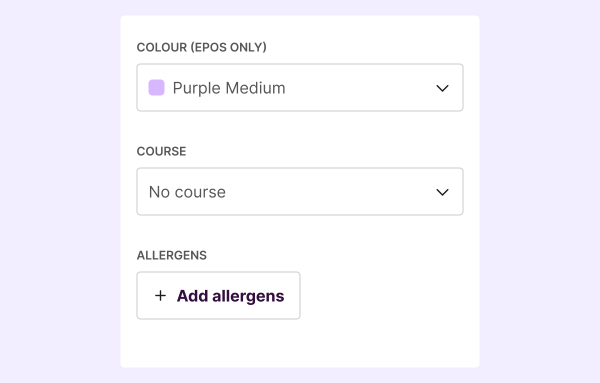
Once you have created your courses, you can link them to products. There are two ways to do this:
- Go into each individual product and select the correct course under "Basic information".
- Go to the Product list, check the products you want to assign a course to, click "Select course" from the menu at the top, and choose the correct course.
Moving products to a different course in the cart
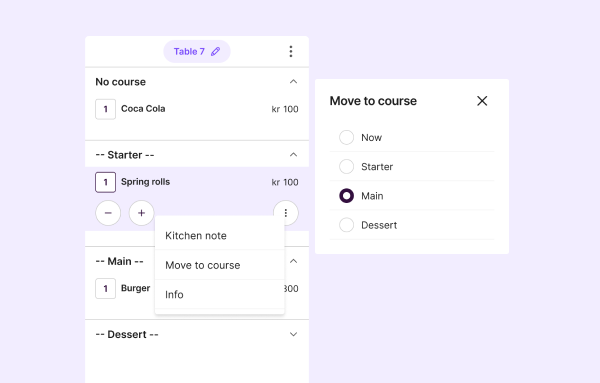
If a guest would like a starter served as a main course instead, you can easily move the product to a different course directly in the cart.
- Tap the product you want to move, then tap the three dots.
- Tap "Move to course" and select the new course.
- The product will now appear under the new course.
Note that this only applies to that individual order. If you want a product to always belong to a specific course, you need to change this on the product itself in the menu.
Viewing which course a product belongs to, or moving it to a different course, is only available in ePOS — not for the guest when ordering digitally.
The kitchen ticket
First order shows everything
The full order with all courses is sent to the kitchen printer when the order is placed. The kitchen can then see all the dishes ordered, grouped under the correct course.
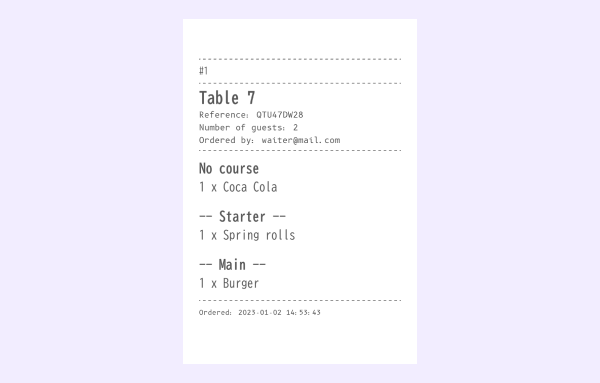
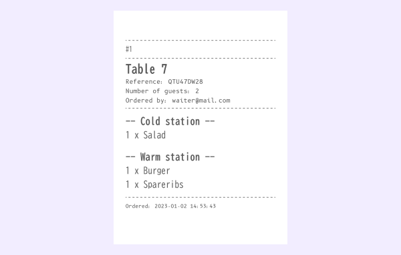
Example of a ticket where courses are grouped as kitchen stations.
Fire the next course
When you can see the kitchen is ready to start on the next course, you send a "fire" ticket. Here is how:
- Go to the open bill for the table.
- Tap the "Course" field.
- Tap "Fire" on the course you want to fire — for example Main Course. A chit will then be sent to the kitchen printer.
The "Fire" function is available from the second course onwards, as the first course is typically started immediately when the kitchen receives the order ticket.
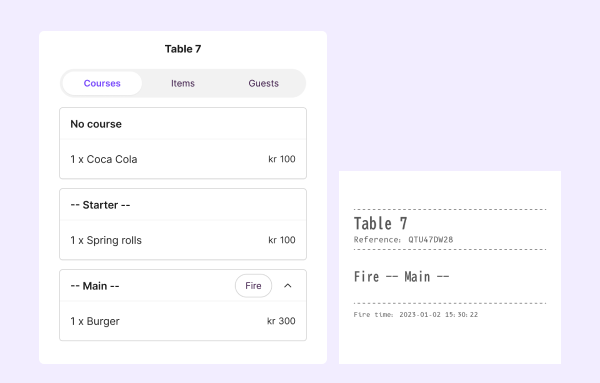
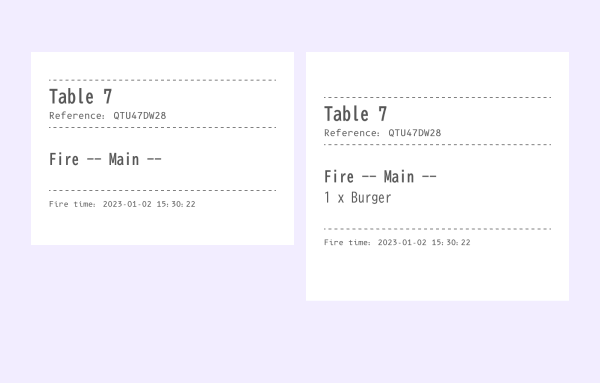
💡 Tip: In the settings you can choose whether the "fire" ticket should include a list of the dishes the kitchen needs to prepare.
Orders via self-ordering
When guests order themselves via the digital menu, products are automatically linked to the correct course on the ticket — just like with manual entry. The difference is that guests cannot choose when a course is served or move products between courses themselves. It is the server who controls when the next course is fired from the open bill in ePOS.
Video guide