
How to get access
Central Reporting is set up by Favrit. To create a central report group, or to give a user access to an existing one, contact us at support@favrit.com and include which locations should be included and which users should have access.
What Central Reporting shows
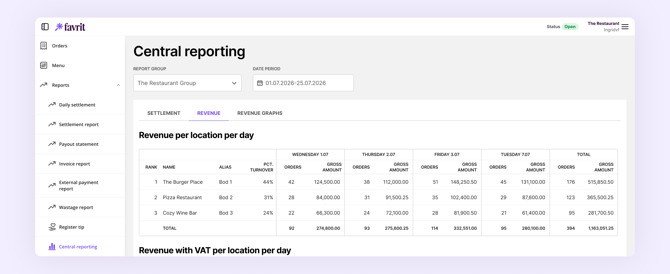
You find Central Reporting under Reports > Central reporting. Select a date period to see combined numbers for all the locations in your group. The page has three tabs: Settlement, Revenue, and Revenue graphs.
Settlement
Download a combined settlement report for your group as an Excel file. It contains the same content as the regular Settlement report, with the numbers combined across your locations — every field is explained in Understanding the Z-report and Settlement reports. In addition, it has two extra tabs:
- Location summary — gross amount, VAT amount, net amount, and tips per location, with a SUM row for the whole group.
- Invoice report — the combined invoice reports from all locations.
Revenue
Two views, which can also be downloaded as Excel files:
- Revenue per location per day — ranks your locations by turnover, with the number of orders and gross amount per day. The Pct of turnover column shows each location's share of the group's total turnover in the selected period.
- Revenue with VAT per location per day — orders, items, gross amount, net amount, and VAT amount per location for each day, split by VAT rate.
- Micronetwork revenue per location per day — for micronetworks: the number of orders and gross amount (with and without tips) per day, split by host location and producer location.
Revenue graphs
The revenue for all locations combined, presented as graphs.
Adding or removing locations
To add a location to your group or remove one, contact support@favrit.com with the location name. Remember to also contact us if a location changes organisation number — the new location must be added to the group.
If Central Reporting has disappeared
If Central Reporting is no longer visible in your menu, it is usually because of a change in user access — for example if your user was changed, or a location in the group was changed or removed. Contact support@favrit.com and we will restore your access.