
Need help deciding which VAT rates or account numbers to use?
Favrit Support cannot advise on this. Please consult your accountant or a tax adviser before configuring tax groups. See our legal disclaimer on accounting advice.
Prevent the most common accounting issues
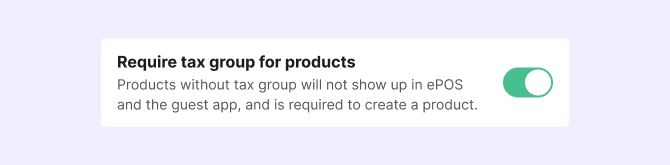
Go to Admin → Menu → Settings and turn on "Require tax group for products".
This ensures no product can be saved without a tax group, which prevents the most common VAT and accounting issues. We recommend doing this before you add products to your menu.
What goes wrong without tax groups
Sales routed to the wrong account
If a product has no tax group, its sales are recorded under the Default sales account set up in your accounting integration. The sync may still run, but the data won't land in the correct accounts — your accountant will need to sort this out manually.
Accounting integration failures
Sync errors typically happen when a tax group exists but is misconfigured — for example, if the account number field is empty, or the account number doesn't match what's set up in your accounting system. A typical error message looks like: "Account xxxx does not exist".
If your integration stops syncing, check your tax group setup first and make sure every tax group has valid account numbers filled in for both eat-in and take away.
Incorrect account mapping
Without a tax group, the product's sales are not mapped to an account number. This means they won't appear correctly in your accounting reports and may cause reconciliation issues.
Default VAT rates (when no tax group is set)
If a product has no tax group, Favrit applies a default VAT rate based on the delivery point and country:
| Delivery point | Norway | Sweden | United Kingdom |
| Counter (ePOS only) | 25% | 12% | 20% |
| Table service | |||
| Pick-up point | |||
| Room service | |||
| Seat | |||
| Conference room | |||
| Takeaway | 15% | ||
| Delivery |
Eat-in vs. takeaway — what determines the category?
Each tax group has separate VAT and account settings for eat-in and take away. Which applies depends on the delivery point:
| Delivery point | Category |
| Table service | Eat in |
| Pick-up point | Eat in |
| Room service | Eat in |
| Seat | Eat in |
| Conference room | Eat in |
| Takeaway | Takeaway |
| Delivery | Takeaway |
Setting up tax groups
Go to Admin → Menu → Tax Groups.
You have two options to get started:
- Add default tax groups — creates a standard set of groups as a starting point.
- Add new tax group — creates a custom group from scratch.
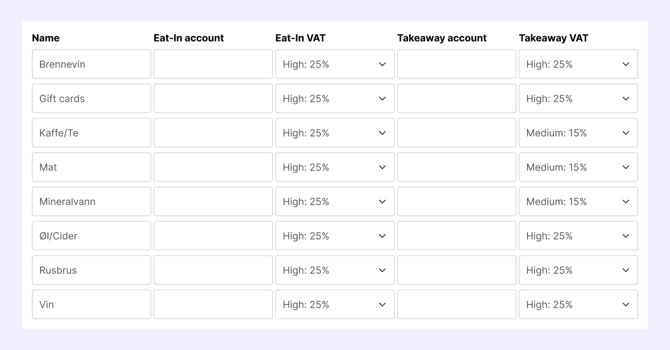
For each group, enter:
- A name (e.g. "Food – eat-in", "Alcohol – take away")
- An account number and VAT rate for eat-in sales
- An account number and VAT rate for take away sales
Assigning tax groups to products
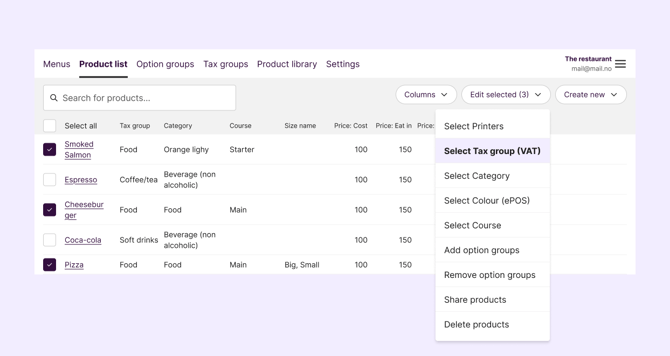
Bulk assignment (recommended for large menus):
- Go to Product list.
- Select all products you want to assign to the same tax group.
- Click Select tax group (VAT) in the toolbar at the top.
- Choose the tax group and confirm.
Per product:
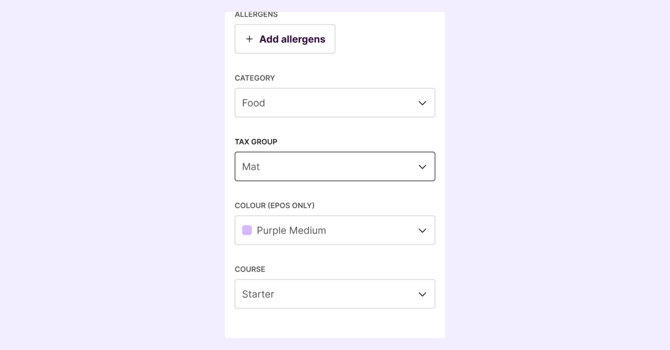
- Open the product you want to edit.
- In the Basic Information section, select a tax group from the tax group dropdown.
- Click Save.
What if the wrong VAT was charged?
If a sale was completed with the wrong VAT rate, Favrit cannot change it after the fact. A receipt and report have already been created at the time of the sale.
Your options are:
- Contact your local tax authorities to understand your obligations and options.
- Depending on the situation, you may need to refund the original transactions and re-process them at the correct VAT rate.
The best prevention is to verify your tax group setup before you go live, and to run a test transaction if you are unsure.
How tax groups appear in reports
- Settlement report — shows account number and VAT per product. If the same product was sold under different tax groups (e.g. both eat-in and take away), it appears as a separate line for each combination.
- X/Z report and Daily Summary — shows VAT breakdown per product.
- Accounting report — shows total gross sales per account number.
VAT is not applied to tips.
Payouts and VAT
If Favrit or Adyen collected the payment, the gross amount including VAT is paid out to you. You are responsible for reporting and remitting VAT to the relevant tax authorities.