
What the integration does
The integration automatically reduces product quantities in GastroPlanner based on sales and wastage registered in Favrit.
This is not related to table maps or booking – only to stock consumption and inventory updates.
Glossary
| Term | Explanation |
|---|---|
| POS (Point of Sale) | The till system you use to register sales – in this case Favrit. |
| PLU (Price Look-Up) | A unique code that identifies a product in the till. Every product in the POS system has its own PLU code. |
| API token | A digital key that allows two systems (here: Favrit and GastroPlanner) to communicate securely. |
| Inventory | Your stock – the overview of all products and quantities you have on hand. |
| Portion | A fixed, defined quantity of a product, e.g. 40 cl of beer or one glass of wine. |
| Recipe | A combination of products that make up a dish or drink (e.g. "Gin Tonic" = gin + tonic + ice). |
Prepare the basic setup in GastroPlanner
All products must be registered in GastroPlanner before the integration is set up. There are three ways to add your products:
- Via deliveries: Register suppliers with your customer number. If you submit historical delivery notes, your inventory can be filled automatically with the correct products.
- Via stock counting: Scan your products – GastroPlanner retrieves them from its shared supplier database.
- Via import (Excel): Used only in exceptional cases – e.g. for special items without a product number.
Recipes and portions
Recipes are used to create structured setups of items, e.g. drinks, dishes or sauces. You can also build recipes for use in other recipes (e.g. a sauce used in several dishes).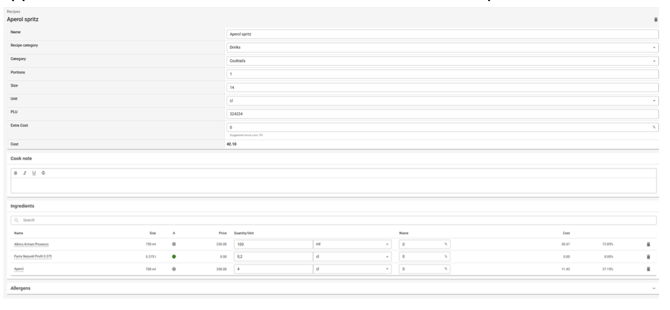
Portions define how much is deducted from stock per sale, e.g. "40 cl" from a beer keg. The portions are later connected to PLU codes in the POS system. 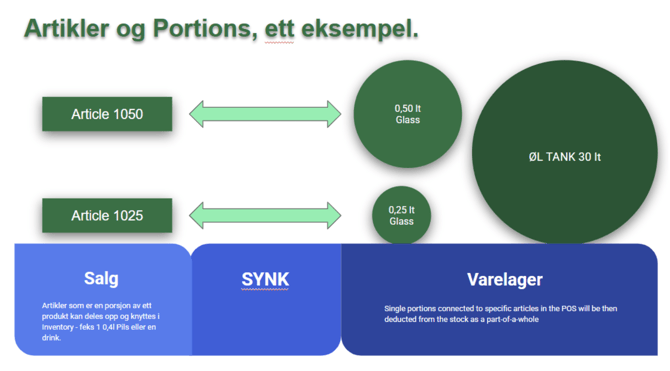
PLU codes in Favrit
For the connection to work correctly, every product in your Favrit menu should have a unique PLU code. Check this before you activate the integration.
It is possible to use the same PLU code on several products, but you will get a warning that the code is already in use. Products sharing a PLU code will be connected to the same product in GastroPlanner.
Do you have several locations with the same menu?
Use the same PLU code for the same product across your locations. Without PLU codes, each product appears once per location in GastroPlanner, and each one must be connected separately. With PLU codes, the product appears only once per PLU, so you avoid connecting duplicates.
Activate the integration in Favrit
The integration is activated per location. If you have several locations, repeat the setup for each of them.
- Get an API token from GastroPlanner Contact support@gastroplanner.no and ask for an API token.
- Go to Admin → Company settings → Integrations → GastroPlanner Inventory
- Register the token in Favrit Paste the token into the API token field and click Enable Integration.
Connect products to PLU codes in GastroPlanner
Once the integration is active, the products in GastroPlanner can be connected based on the PLU codes from Favrit. For GastroPlanner to know what is being sold, each product must be connected to the correct PLU from Favrit.
This can be done in two ways:
-
Autoconnect (automatic connection)
Go to Settings → Sync POS-products → Autoconnect in GastroPlanner.
The system will automatically match PLU codes from Favrit with the corresponding products or recipe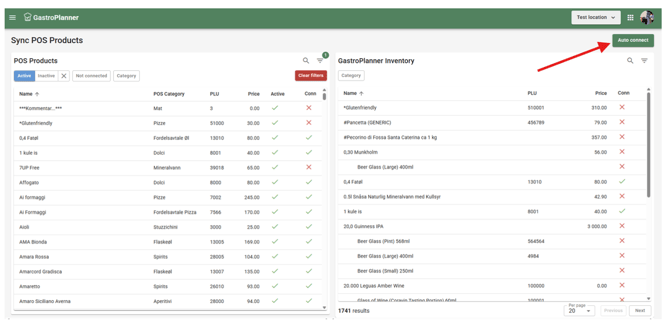
-
Manual connection
If you have a short menu, we recommend connecting each product manually.
Select the product in the POS list, search for the corresponding product in GastroPlanner, and click Connect.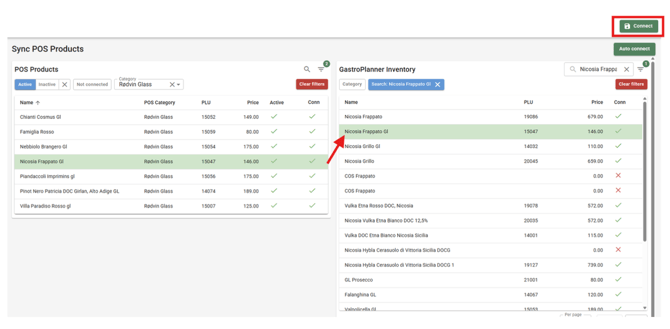
If you add new products to your Favrit menu later, make sure they are also connected to the correct product in GastroPlanner.
Products not appearing in GastroPlanner?
If the products do not appear in GastroPlanner, you can click the Sync product catalogue button in Favrit. You will find it under Admin → Company settings → Integrations → GastroPlanner Inventory.
Done! GastroPlanner will now:
- Automatically deduct items from stock when sales are made in Favrit
- Receive wastage registered in Favrit, so that wastage is also deducted from stock
- Calculate theoretical vs. actual stock levels
- Provide reports for:
- Stock counting and inventory value
- Sales vs. cost
- Wastage and discrepancies
Troubleshooting and support
- Problems with the token or synchronization: Contact support@gastroplanner.no
- Questions about the setup in Favrit: Contact support@favrit.com