
Start at the top and work your way down.
1. Check you're using a supported printer
Most mC-Printers are supported. See our webshop for alternatives. If you're unsure whether yours is compatible, contact Favrit Support.
You also need an iPad (Apple) to connect the printer by USB or Bluetooth. Other tablets aren't supported.2. Is the printer turned on?
- Check for the blue light on the printer.
- If there's no light, press and hold the power button.
- If it still won't turn on, open the back cover and check the power cable is firmly connected.
- Check that the power outlet works.
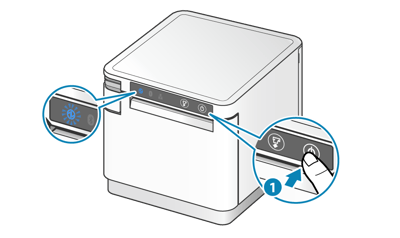
If the printer has no power even with a working outlet and cable, it may need to be replaced — contact Favrit Support.
3. Is there paper, and does it print?
- Press the feed button on the printer to check that paper prints.
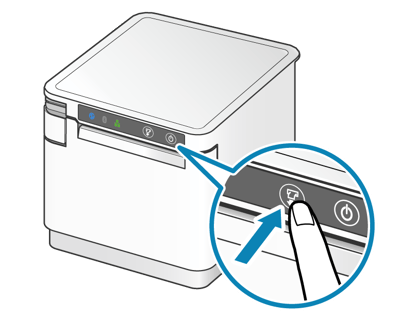
- This only confirms that the printer has power and paper — it doesn't tell you whether the printer is connected to the app.
- If nothing comes out, open the front cover and check there's paper and that it's inserted the right way (top feed).
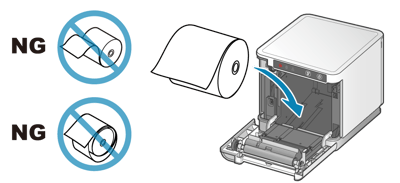
- If pages come out blank, the paper may be inserted upside down. Re-insert it following the paper guide.
- Make sure you're using the correct paper: thermal roll, 78–80 mm. You can buy this in the Favrit Shop.
4. Check the connection between Favrit and the printer
Run a test print to check the connection. Follow the steps based on your connection type.
A loose or damaged cable is the most common cause of a printer dropping out.
It's worth checking the power cable, Ethernet cable (for CloudPRNT connection) and USB cable (for USB connection), even if they look fine.
Test print for USB or Bluetooth connection to iPad
- Make sure you're using the Favrit Admin app. Printing won't work from a web browser like Safari or Chrome.
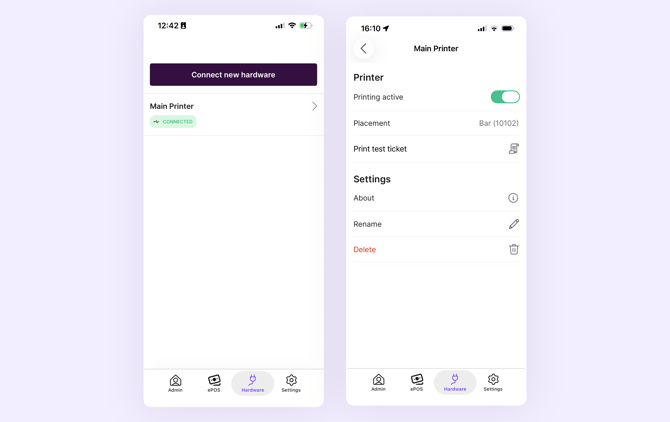
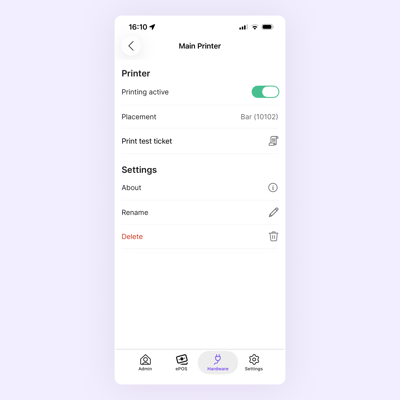
- In the app, tap the Hardware tab at the bottom.
- Check if the printer is connected.
- Check if "Printing active" is enabled.
- Tap "Print test ticket".
Not connected or did not print?
Reconnect with USB or Bluetooth.
| USB | Bluetooth |
Try a different USB cable if this does not work. |
|
Note: Bluetooth can be unstable. For a wireless connection we recommend setting up CloudPRNT instead.
Test print for CloudPRNT (Ethernet cable)
- Go to Admin > Equipment > CloudPRNT.
- In Active Printers, click "Print Test".
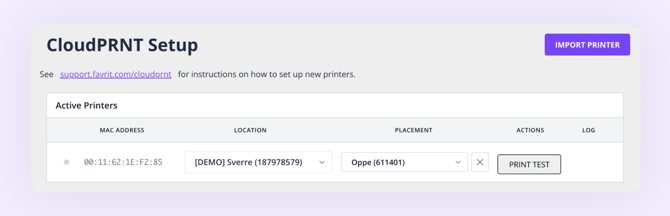
Not active or did not print?
|
Common issues: |
Solution |
|
The printer was switched off for a while and now won't print. |
Its CloudPRNT connection may have expired. Go to Equipment > CloudPRNT and click Activate on any inactive printers. |
|
You can't connect the printer by USB. |
An Ethernet cable blocks USB connections. Unplug the Ethernet cable if you need to connect over USB instead. |
|
Printing keeps dropping out. |
This is usually the local network timing out rather than the printer. Check your Wi-Fi/network is stable, and contact your internet provider or IT support if it keeps happening. |
For full setup instructions, see Set up printer with CloudPRNT.
If the test print works, your printer and connection are fine. The problem is in your settings — go to step 5.
If the test print still doesn't work:
-
Check your internet connection:
Open another website (for example a newspaper) to confirm the iPad is online, turn Wi-Fi off and on, or share internet from a phone to test. If no device can get online, contact your internet provider or IT support. - Try a different cable:
Change USB or Ethernet cable, depending on your connection type.
5. The printer is connected, but orders aren't printing
If a test ticket prints but guest orders don't come out — or they print in the wrong place — the hardware is fine and it's a settings issue. Check these in order:
- Are products assigned to a printer?
If a product has no printer set, its orders have nowhere to print. Go to Admin > Menu, find the product, and check if it's assigned to the correct printer.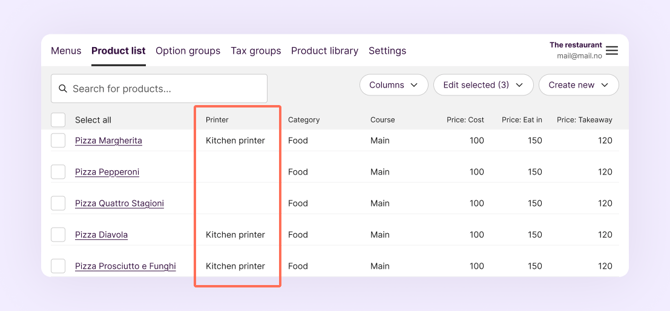
- Is printing enabled?
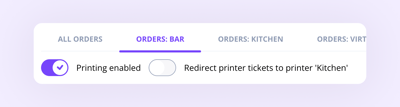
- Go to Admin > Order log > select the printer, and see if printing is enabled.
- Check the Hardware tab in the app, select the printer, and see if "Printing active" is enabled.
- Go to Admin > Order log > select the printer, and see if printing is enabled.
- Is 'redirect printing' disabled?
In the order log, check whether there's a "Redirect printers to …" toggle and make sure it is turned off. This makes orders appear on the main printer again. - Do you have more than one printer connected?
Two printers connected to one iPad can stop orders printing correctly. We recommend connecting one printer by cable and using CloudPRNT for the others. - Is the section or location closed?
Orders from a closed section won't print. Check the section is open and review your opening hours.
Still not working?
If none of these steps help, contact Favrit Support and let us know which steps you've already tried — it helps us solve it faster.