
You can manage all of this yourself in Admin > User permissions.
How to add a new user
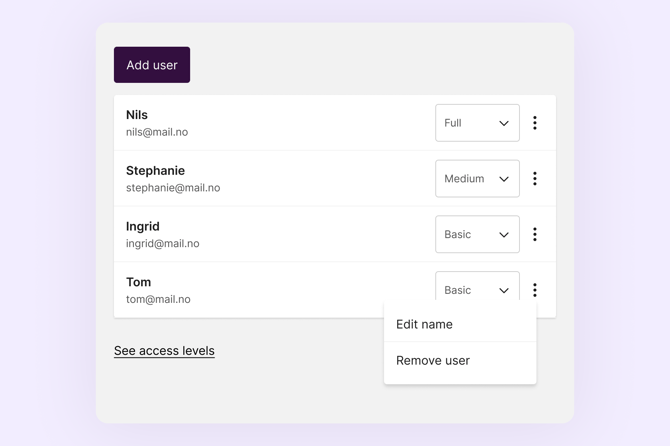
- Go to User permissions > Users
- Click Add user
- Enter the new user's name, email address, and select their access level
- Click Save
The new user will receive a welcome email with a link to set their password.
Note: If the email address is already registered in Favrit from a different location, they will not receive an email, but can log in and get access to your location right away.
If they do not receive the email, ask them to check their spam folder. If it has still not arrived, check out this article about log in issues, or contact support and we will send them a login link manually.
How to give an accountant or external party access
If your accountant or a third-party tool (such as Stockifi) needs access to your Favrit data, you can add them as a user the same way you would add a staff member.
How to remove a user
- Go to User permissions > Users on the relevant location
- Find the user and click the remove option next to their name
This removes their access to that specific location only. If they have access to other locations, those are not affected and need to be removed separately.
Access levels
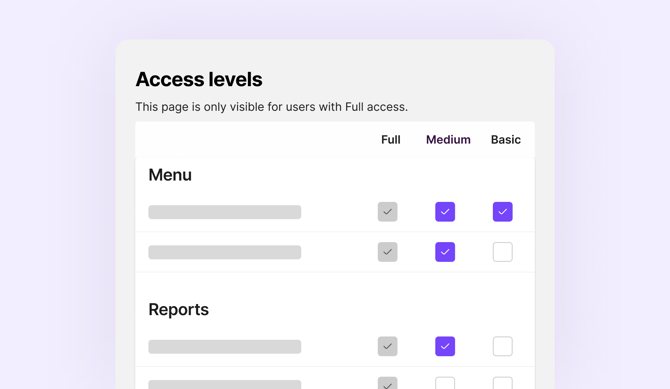
You can choose between three access levels when adding or editing a user. Access levels can be customised under User permissions > Access levels.
Full: Access to everything.
Medium and Basic: Configurable. The permissions for these levels are set under User permissions > Access levels.
How to change a user's access level
- Go to User permissions > Users
- Find the user and click the dropdown on the right side
- Change the access level and save
How to give a user access to multiple locations
There is currently no central user management across locations, so users need to be added to each location separately.
The user will see all their locations when they sign in and can switch between them.
How to bulk upload users
If you need to add a large number of users at once, Favrit support can do a bulk upload on your behalf. They will be assigned Basic Access Level.
To request this, send us an Excel file with the columns like the example below. If the same user should be added to several locations, create separate rows.
| Name | Location ID | PIN (if enabled for your location) | |
|
Ingrid |
ingrid@mail.no |
12345678 |
1234 |
|
Ingrid |
ingrid@mail.no |
23456789 |
1234 |
|
Tom |
tom@mail.no |
23456789 |
4321 |
How to find the Location ID
Open Admin in your browser and check the URL for the numbered ID [********]:
https://admin.favrit.com/#/location/********/
How to set up PIN login for your staff
PIN login allows staff to switch between users on the ePOS without entering an email and password each time. PIN is currently a pilot feature. To get access, contact Favrit Support to book an onboarding meeting to set it up.