
How do I discard a product?
Discard from an open bill
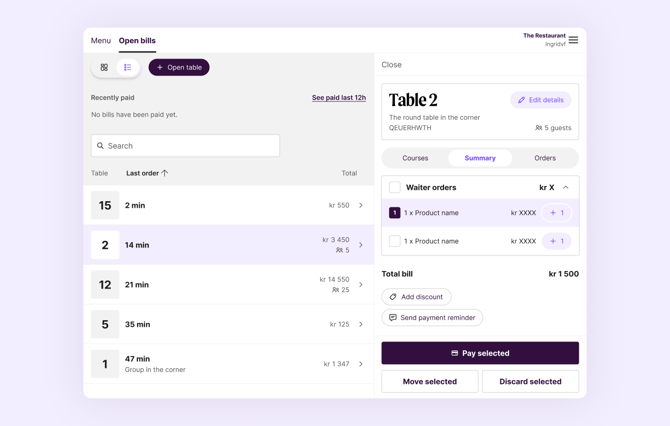
- Open the bill in ePOS.
- Select the product you want to remove.
- Click Discard selected.
Add a reason for a discard by discarding from Admin
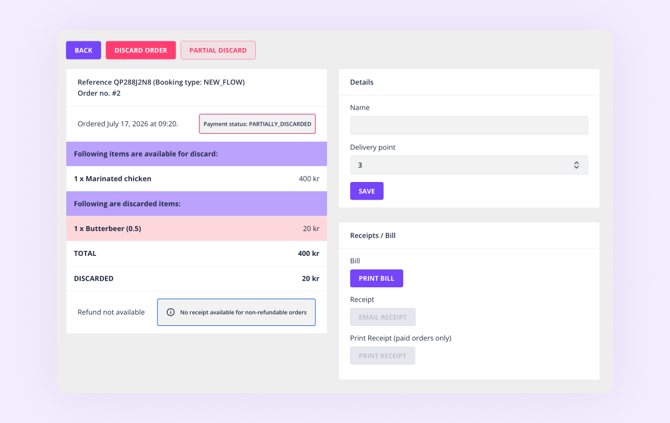
It is currently not possible to add a reason for a discard in ePOS. If you need to record a reason, discard from Admin instead, where you can add a comment:
- In Admin, go to Orders.
- Click the order you want to correct.
- Select Discard.
Register a product as waste
If a product was real waste rather than a mistaken entry, register it as waste as well so your waste figures stay accurate:
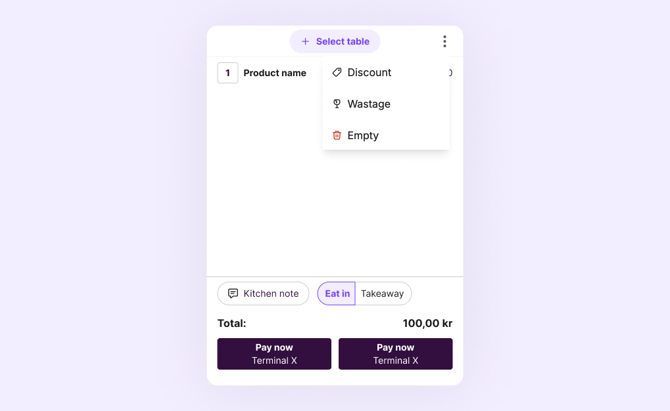
- Open the Menu tab in ePOS.
- Add the product to the cart.
- Click the three dots in the top-right corner.
- Click Wastage.
Not possible to discard a product?
There are a few situations where a discard won't go through:
- The remaining amount is smaller than the item you're trying to discard. If part of the bill has already been paid and the outstanding amount is lower than the item's value, the item can't be discarded.
- The table is locked or stuck. A table stuck in an ongoing payment or "in use" state can't be edited. Try resetting the terminal, or create a copy of the table to take payment and discard the stuck version.
- The terminal is in use. If the terminal is stuck on "In use", you can't move the order back to cart or discard it until the terminal is reset.
If you're still unable to discard, contact support with the order reference and we'll help.
How do I correct a remaining amount on a table?
If a table is left with a remaining amount after part of it has been paid, you can't discard it. Use Bill correction to close the table instead:
- Open the table in ePOS.
- Below the payment overview, tap Correction (next to "Add discount").
- Choose a reason, check the amount, add a comment if helpful, and press Confirm.
Bill correction is only available on tables where at least one payment has already been registered. See How to close a table that's stuck open.
What happens to my stock count when I discard a product?
A discarded product is not automatically returned to your stock count. This is because a discard is sometimes made to correct a wrong entry, where no stock was actually taken out. If you want your stock count to stay correct, you need to adjust it back manually:
- Go to the Menu builder.
- Select the product you discarded.
- Adjust the stock count back up to the correct number.
How do discards affect my reports?
When you discard an order, both the original sale and the discard are recorded:
- The sale is registered as normal.
- The discard is registered as a negative amount that balances out the sale.
- The discarded amount is also included in the settlement period's total under "Discards/annullering/korrigeringer inneværende periode".
What if I discard a product on another day than it was sold?
For open bills, the sale is registered when the order is made. If the bill is not paid the same day — let's say this is Monday — it creates a credit balance for Tuesday. If you on Tuesday discard a product from that bill, it will be registered as a minus in the report on Tuesday, and the credit balance will also be reduced by the discarded amount.
For more on how discards affect the credit balance, see User guide for the Z-report.
Who discarded this, and when?
If you need to check who discarded a product and when — for example if you suspect a bill was changed after the order was placed — you have two options in Admin:
- Audit report — shows who performed a discard and the exact time it happened, so you can trace individual discards back to a user.
- Refunds/discard report — gives you an overview of all discards over a chosen period, with order references, rather than one day at a time.